Sidebar
This is an old revision of the document!
Table of Contents
Hotel Transactions Database
The purpose of the Hotel Transaction Database is to: search, edit, add and delete hotel transactions.
1. Search an hotel transaction
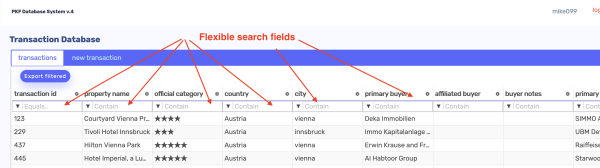
In order to view existing hotel transactions, first make sure the tab “transactions” is selected. For searching use the smart searching feature which is available above any column. Each column represents a dataset of mandatory or optional fields which could contain unique (f.i. address) or repetitive data (f.i. city, country).
2. Edit an hotel transaction
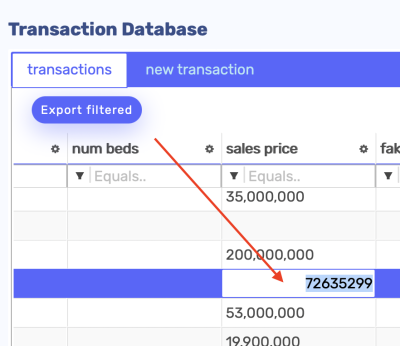
At the moment, only transaction related data could be edited. This could be done directly on the transactions list, simply by scrolling right, pressing on the transaction data and modifying to the correct data.
In order to modify the hotel data such as name or rooms number we are working on the function which is still under development. (changing or adding an hotel)
3. Add an hotel transaction
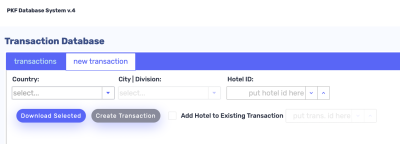
In order to add a new hotel transaction, first switch the tab on the web app to “new transaction”.
3.1. Adding a transaction for a hotel which is existed in the hotel database
In order to add an hotel transaction, make sure the hotel is found (1) via Hotel ID, or (2) by finding it through the “smart search” feature.
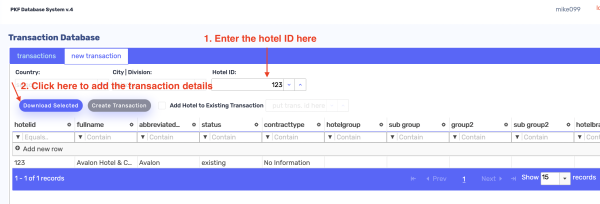
1. Enter the hotel ID, in case you know it in the Hotel ID field and after click on Download Selected.
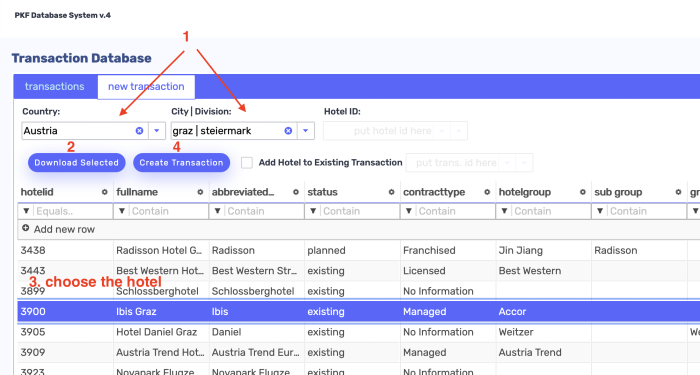
2. If you don't know the hotel ID, you need to find it first. In order to check if the hotel is existed in the database, (1) first choose the country and the city where the hotel is located and (2) press on “Download Selected”. After, (3) choose the hotel by filtering further the columns via the “smart search feature” and (4) press on “Create Transaction”.
3.2. Adding a transaction for a hotel which is NOT existed in the hotel database
This functionality is still under development, since it requires the flow of adding, reviewing and approving or rejecting “new” hotels via the web app.
4. Delete an hotel transaction
In order to delete an hotel transaction. Simply hoover with the computer mouse on the transaction you wish to delete, an “x” button will appear on the right side of the screen:
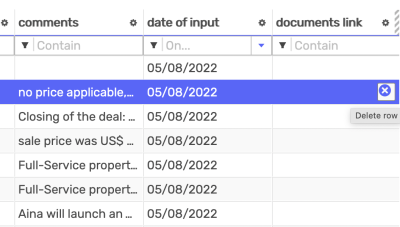
Click on the “x” button. A prompt pop-up will appear to make sure you really intend to delete the transaction record, if so press “OK”.